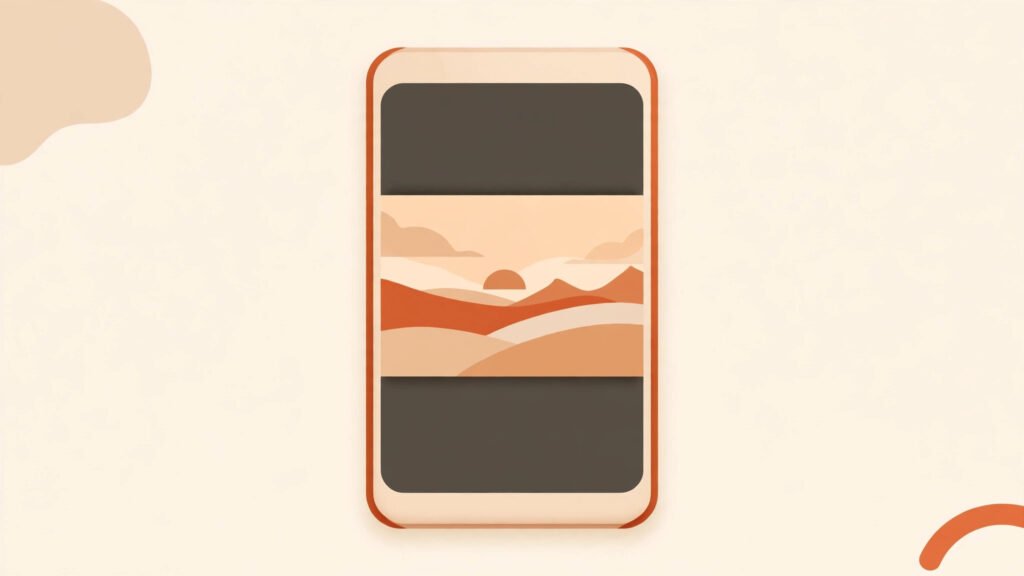
Instagram video without cropping means your whole clip stays visible: no heads cut off, no captions sliced at the edge, no important detail lost to a frame that does not match your video. Instagram crops when your video’s shape does not match the shape of the surface it is posted to, so the fix is to match the shape before you post, not to hope the platform guesses well. For Reels and Stories, that shape is 9:16, 1080 x 1920 pixels, full-screen vertical. If your clip is already vertical, you are mostly done. If it is landscape or square, you need to fit it into 9:16 deliberately, with padding, rather than letting Instagram crop it for you.
Why Instagram crops your video
Instagram supports a range of aspect ratios, but each surface crops anything outside its supported range. A landscape 16:9 clip posted as a Reel is forced into a vertical frame, and the platform keeps the middle slice and cuts the sides. A square clip gets a similar treatment, with less lost, but still lost. The cropping is not random: it is centred, which is why a centred subject often survives while a person at the edge, a caption at the side, or a product at the corner disappears. The first step in avoiding cropping is therefore not a tool, but a decision: which surface are you posting to, and what shape does it need? Answer that before you edit, because every later choice follows from it.
How to get instagram video without cropping, step by step
- Decide the surface: Reels and Stories need 9:16 (1080 x 1920); feed video can use 1:1, 4:5 or 16:9 depending on the post type, as covered in the site’s image sizes guide.
- Open the Instagram Reel Resizer at https://videosavetools.com/instagram-reel-resizer/ and fit your own video into 9:16 with padded fit, not crop, so the whole picture survives with bars above and below if needed.
- Check the preview on a phone, looking specifically at heads, hands, captions and anything near an edge, and at the top and bottom where Instagram’s own buttons and caption sit.
- If anything is still cut, change the fit, add padding, or move the important content away from the edges and re-export, rather than posting and hoping.
Worked example: a landscape clip saved as a Reel
Take a 1920 x 1080 landscape clip of two people talking, one at each side of the frame. Posted directly as a Reel, Instagram keeps the middle vertical slice, and both people are partly cut off. Fitted into 1080 x 1920 with padding instead, the whole 1920 x 1080 picture survives, smaller, with bars above and below. The padded version looks less dramatic than a full-screen crop, but both people are visible, the captions are readable, and nothing the viewer needs is missing. That trade-off — a slightly smaller picture versus a cropped picture — is the whole decision, and for most creators the full picture wins, because a cropped face or a missing word costs more than the bars do.
Shooting vertical from the start, and other ways to avoid cropping
If you know a clip is only for Reels, shoot vertical from the start: a native 9:16 clip needs no fitting, loses nothing, and fills the screen. If you already have a landscape clip, padded fit is the honest conversion. A third option, for feed posts rather than Reels, is to post in the clip’s native ratio instead of forcing it into 9:16: a 16:9 feed video stays 16:9, and a 1:1 video stays square, so nothing is cropped, at the cost of a smaller on-screen presence than a vertical Reel. What does not work is stretching the clip to fill the frame: stretching distorts faces and objects, and viewers notice it immediately, even if they cannot name what is wrong.
Common mistakes with instagram video without cropping
The most common mistakes are: posting a landscape clip as a Reel and assuming Instagram will handle it, cropping instead of padding and losing the edges, forgetting the safe zones at the top and bottom where buttons and captions cover the video, and judging the result on a desktop screen instead of on a phone, where the frame is tall and narrow and edge problems show up clearly. Another is exporting once and never watching the result: a 30-second check on a phone catches almost every cropping problem before your audience does.
Frequently asked questions
What size should a Reel be? 1080 x 1920 pixels, 9:16, full-screen vertical.
Can I post a landscape video without cropping? Yes, as a feed video in its native ratio, or as a Reel fitted with padding, so the whole picture survives.
Why does Instagram crop my video? Because its shape does not match the surface, so the platform keeps the middle slice.
Is padding better than cropping? When nothing may be cut, yes; cropping is only better when the subject is centred and the edges carry nothing important.
Should I shoot vertical? If the clip is only for Reels, yes, shoot vertical from the start.
How this guide was checked
VideoSaveTools is an independent site and is not affiliated with, endorsed by or sponsored by Instagram, Facebook or Meta. The 9:16 and 1080 x 1920 guidance matches the Instagram sizes used across the site’s sizing guides, and the Reel Resizer and safe-zone tools are linked above.
4 comments